Modern phones and cameras take wonderful photos, but those photos come at a cost: file size. A single picture can easily weigh 10, 15 or even 20 MB, which is more than fumoshare will accept. When an upload fails because your image is too large, the usual reaction is to compress it with an online tool or send it through a messaging app. Both options tend to leave you with a soft, blocky and noticeably worse picture.
There is a better way. With Snapseed, a free photo editor from Google, you can shrink your image to a web-friendly size in a few taps, and the result still looks sharp on screen.
Reducing the pixel dimensions is therefore the cleanest way to cut the file size. Unlike aggressive compression, it doesn't introduce artifacts, so the picture stays clean.
What You Need
- A smartphone (Android or iOS)
- The original photo, saved on your device
- The Snapseed app, which is free:
Step-by-Step Guide
1. Install and open Snapseed.
Download the app from the link above and open it. You don't need to create an account.
2. Import your original image.
Tap the screen (or the "+" button) and choose the photo you want to upload. Always start from the original file rather than a copy that has already been compressed or forwarded through a chat app, because each round of compression costs you detail.
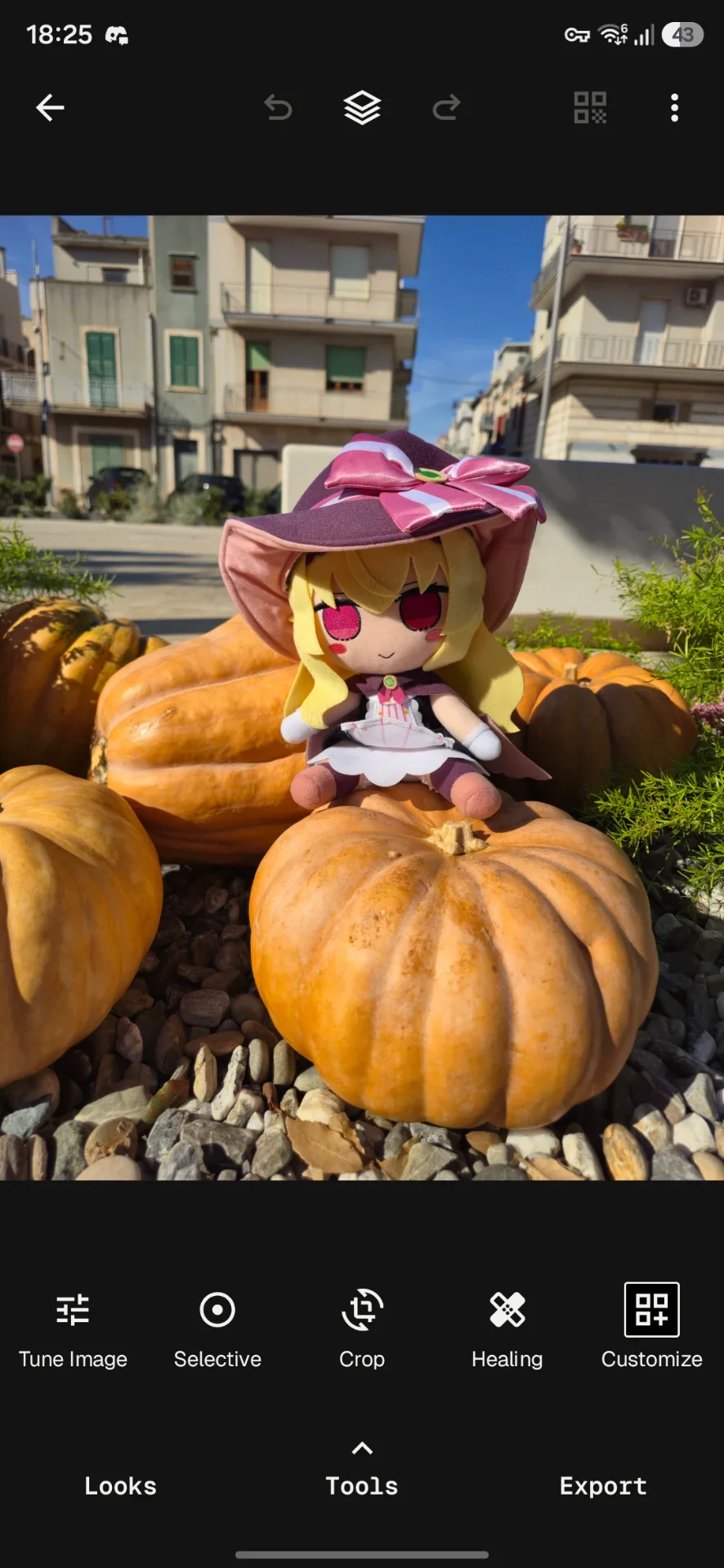
3. Tap Export.
You don't need to edit anything. In the editor, tap Export at the bottom right of the screen. A menu will appear with three options:
- Save keeps a single version in your Snapseed gallery, and all edits stay reversible.
- Save a copy creates a copy of your photo, and edits also stay reversible.
- Export creates a copy with permanent changes. This is the one we need, because it lets us choose the size and format of the final file.
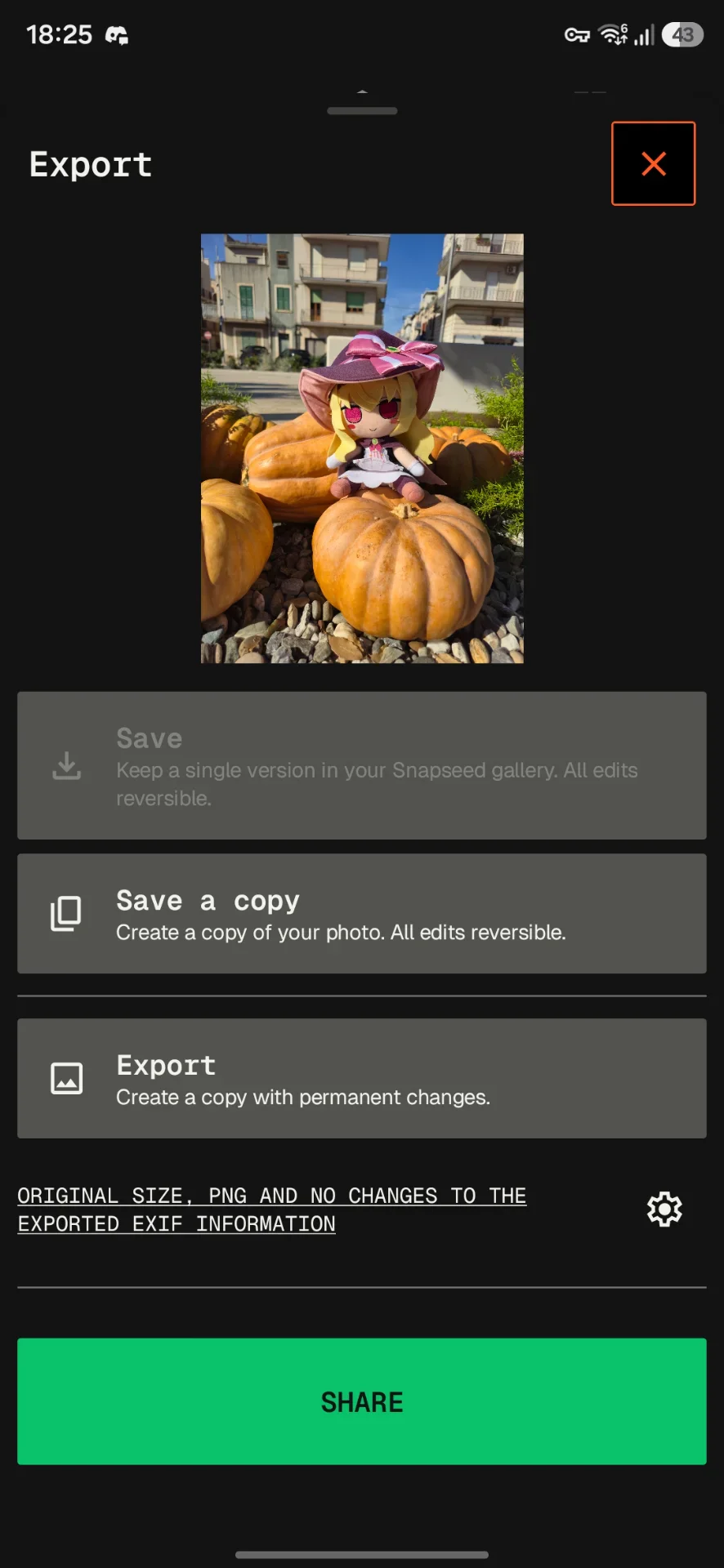
4. Open the export settings.
Below the options you will see a line of text summarizing your current settings, for example "Original size, PNG and no changes to the exported Exif information". Next to it there is a gear icon. Tap it.
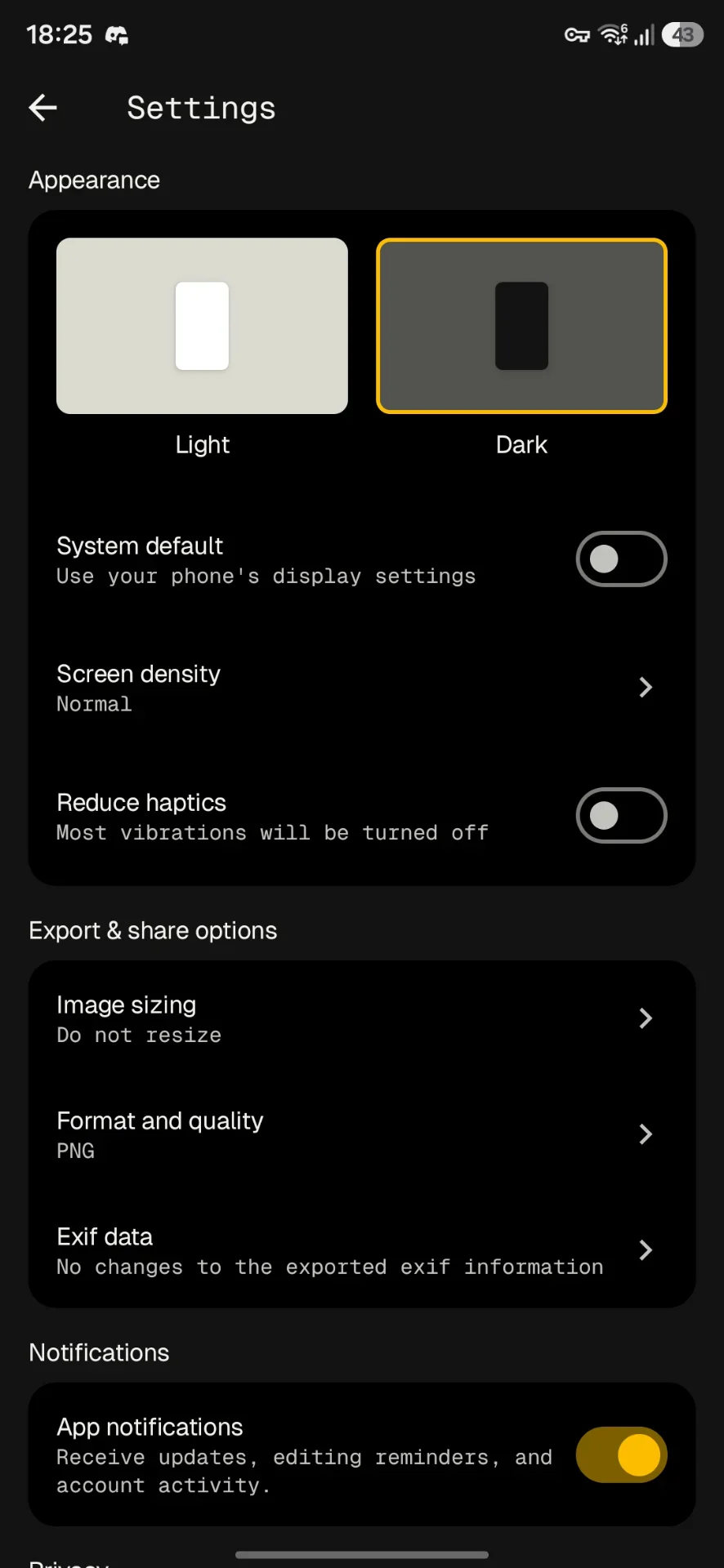
5. Open "Image sizing" and choose 1920 px.
Under Export & share options you will find Image sizing, which is set to Do not resize by default. Tap it and you'll see a list of sizes:
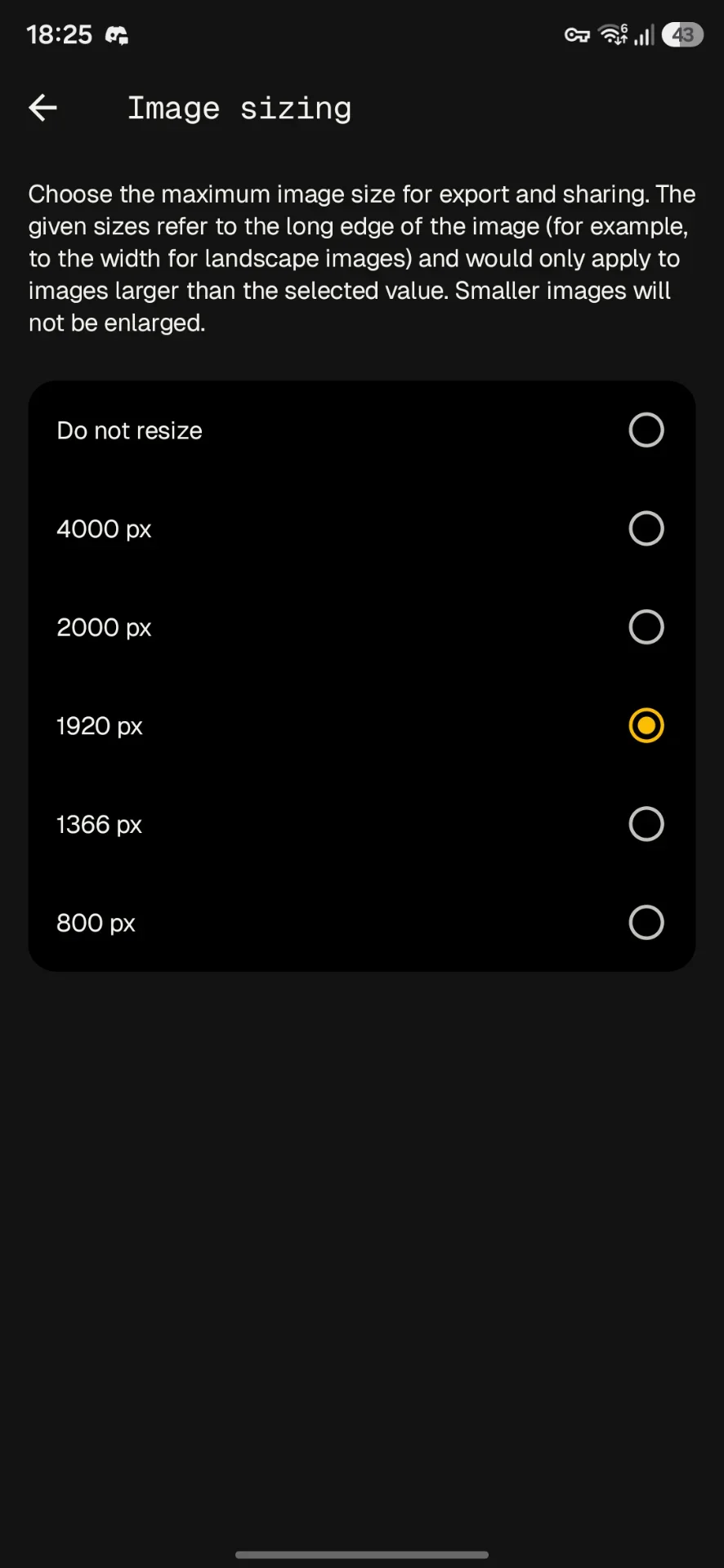
- Do not resize
- 4000 px
- 2000 px
- 1920 px (our recommendation)
- 1366 px
- 800 px
Select 1920 px. The value refers to the longest side of the image, so a landscape photo will be 1920 pixels wide and a portrait photo will be 1920 pixels tall. Snapseed only applies this to images that are larger than the selected value, so smaller images will never be enlarged or stretched.
Why 1920 px Is a Good Choice
1920 pixels is the width of a standard Full HD screen. That means your image will look crisp on practically any monitor, laptop, tablet or phone. Going higher gives you a bigger file without a visible benefit, and going lower (1366 px or 800 px) starts to show softness on larger displays. If your image is still too heavy after exporting at 1920 px, 1366 px is a good fallback.
Extra Tips
- Check the format. By default the export format may be set to PNG, which preserves everything but creates large files. If your resized image is still above the limit, open the gear icon again, tap Format and quality, and choose JPG with a high quality setting (around 90 to 95%). The difference is almost impossible to see, and the file will be much smaller.
- Keep your original. Exporting creates a new file, so your full-resolution photo remains safe on your device. Keep it for printing or archiving.
- Don't compress twice. Avoid sending the photo through a chat app before uploading it. Apps like WhatsApp or Messenger compress images automatically and will reduce quality before you even start.
Conclusion
Uploading a large photo doesn't have to mean sacrificing its quality. By exporting it from Snapseed at 1920 px, you reduce the file size well below the upload limit while keeping the image sharp and detailed for web display. It takes less than a minute, requires no editing skills, and works on both Android and iPhone.
Why does Fumoshare limit uploads to 10 MB?
Fumoshare is a fan-made project, built and run by fans for the community. Every image and story we host takes up storage and bandwidth, and those costs add up quickly.
The 10 MB limit helps us keep running costs low, and that lets everyone upload up to 5 images and 2 stories per day without paying anything. Thanks to the resizing trick above, your photos still look sharp at a much smaller size.


